English
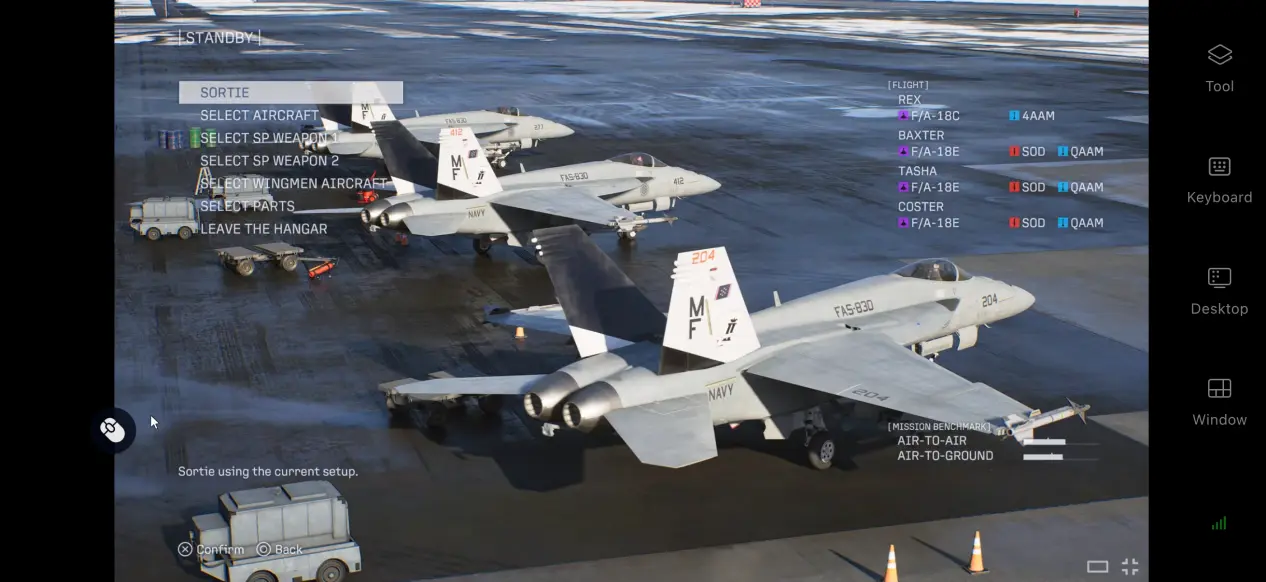
ACE COMBAT 8: WINGS OF THEVE is a long-awaited mainline entry in the series, drawing plenty of attention from flight-action fans with its large-scale aerial combat, layered cloud environments, and wide range of aircraft customization options. Many players want to enjoy the PC version without being tied to their desk, especially when they only have short breaks to play. This guide walks you through the entire setup process, from getting the game and installing the streaming software to adjusting the necessary settings, so you can get everything ready for mobile play.
OSLink can stream PC gameplay to your phone and is well suited to the rapid movements and continuous button inputs required in ACE COMBAT 8: WINGS OF THEVE. No jailbreak or system-level device modifications are required. Simply sign in with the same account on both devices and pair them to start streaming the game screen. With low input latency, actions such as rolling, evading, and firing weapons can be performed smoothly.
1. How to Play ACE COMBAT 8: WINGS OF THEVE
The PC version is primarily distributed through Steam, so purchasing the game through Steam is recommended. Open the store and search for the full game title, then check the edition details and choose either the Standard Edition or Deluxe Edition according to your needs. Once the purchase is complete, the game will be added to your personal library, where you can download it.
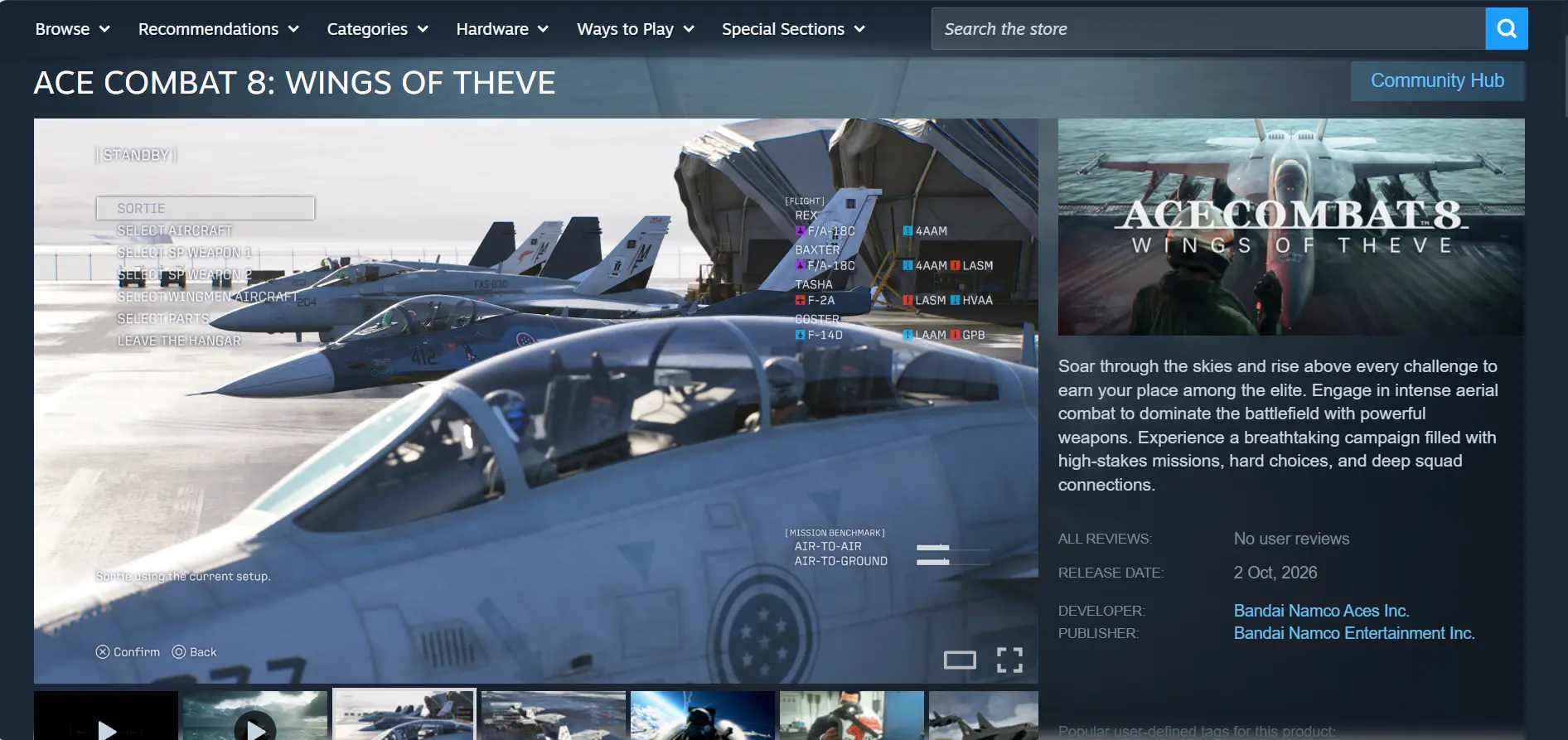
After downloading and installing the game, make sure to launch it on your PC first. Enter a campaign mission and confirm that the game runs properly without any issues before moving on to the remote streaming setup.
2. How to Install OSLink on Your PC and Phone
Install OSLink on PC
On a Windows device, visit the official OSLink website and download the installer. Complete the installation, sign in to your account, and keep the software running in the background.
Install OSLink on Mobile
On Android devices, you can download the APK installer from the official website or search for the app in a trusted app store and install it from there. On iOS devices, simply open the App Store, search for the corresponding app, and download it.
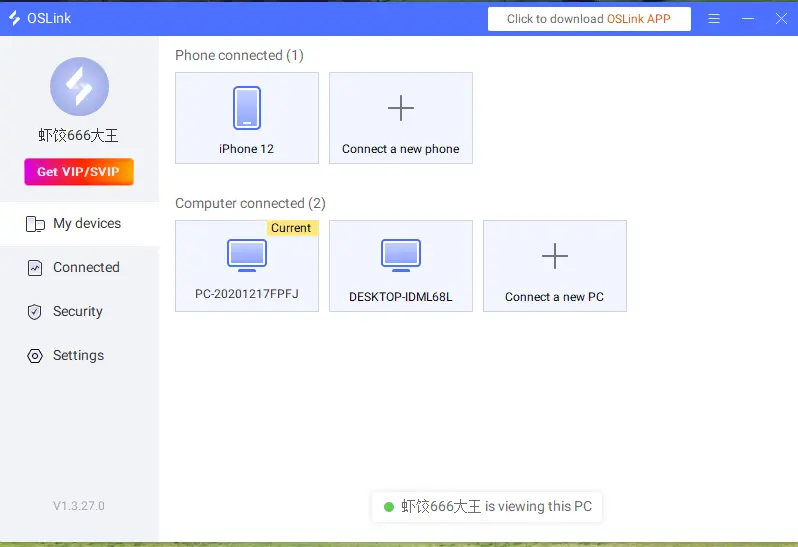
Important: Your phone and PC must be signed in to the exact same account. The software will automatically detect devices that are online, so there is no need to manually enter a device ID to complete the pairing process.
3. How to Run ACE COMBAT 8: WINGS OF THEVE Through OSLink on Mobile
Keep OSLink running in the background on your PC and make sure the computer's sleep settings are disabled. Launch ACE COMBAT 8: WINGS OF THEVE locally on the PC, wait for all game resources to load, and leave the game at the main interface.
Open OSLink on your phone. The device list will show PCs currently online under your account. Tap the target PC to send a connection request. Once the connection is established, the PC game screen will be streamed to your phone.
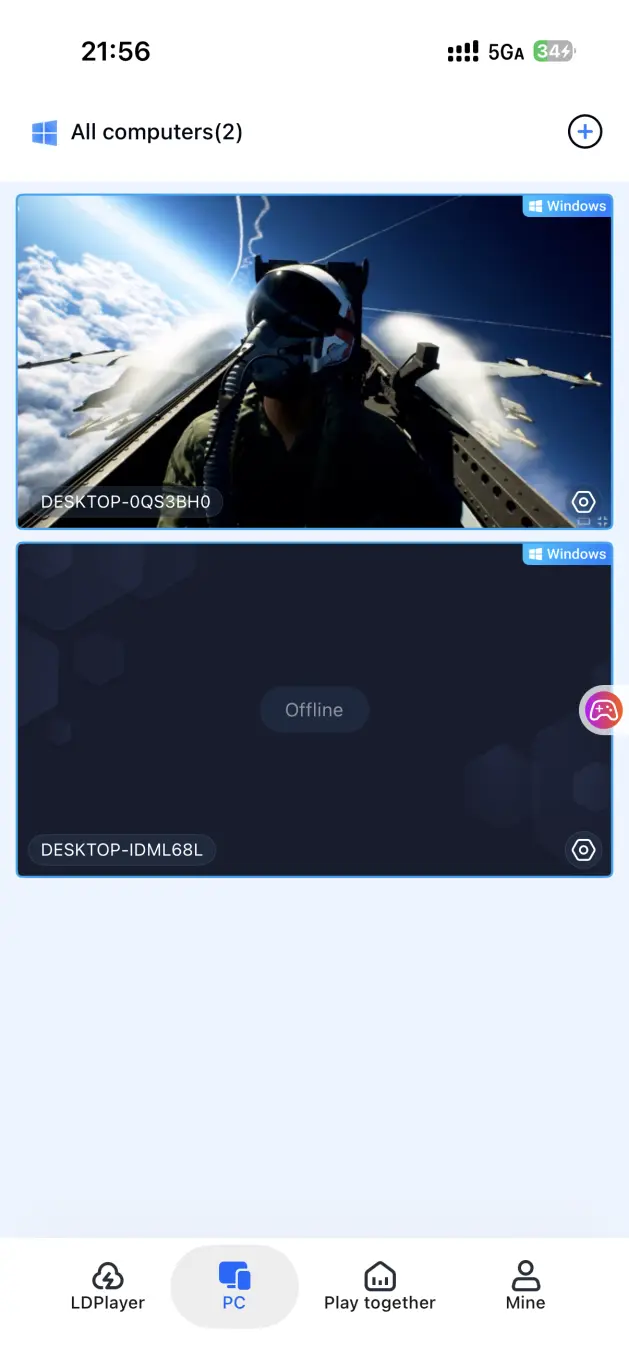
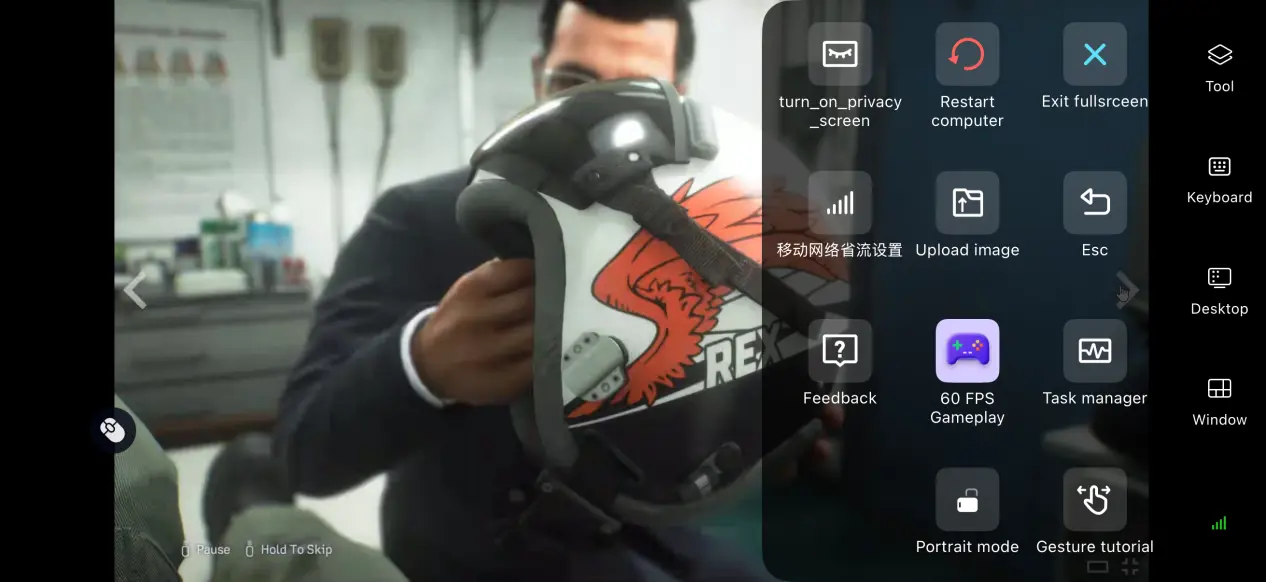
After connecting successfully, it is recommended to open the side toolbar on your phone and switch to the game-specific streaming mode. This mode readjusts encoding priorities to better handle the frequent turns and continuous inputs common in aerial combat games. Once the setup is complete, you can perform actions such as taking off, locking onto targets, and firing weapons directly from your phone.
4. Benefits of Playing ACE COMBAT 8: WINGS OF THEVE on Mobile
Wide Range of Controller Support
The software offers broad compatibility with external hardware, allowing your phone to connect to mainstream Bluetooth controllers. Once a controller is connected, you can recreate the native flight controls from the PC version. Use the analog stick to control your aircraft's movement and assign buttons to weapons and flares for a more comfortable aerial-combat experience on mobile.
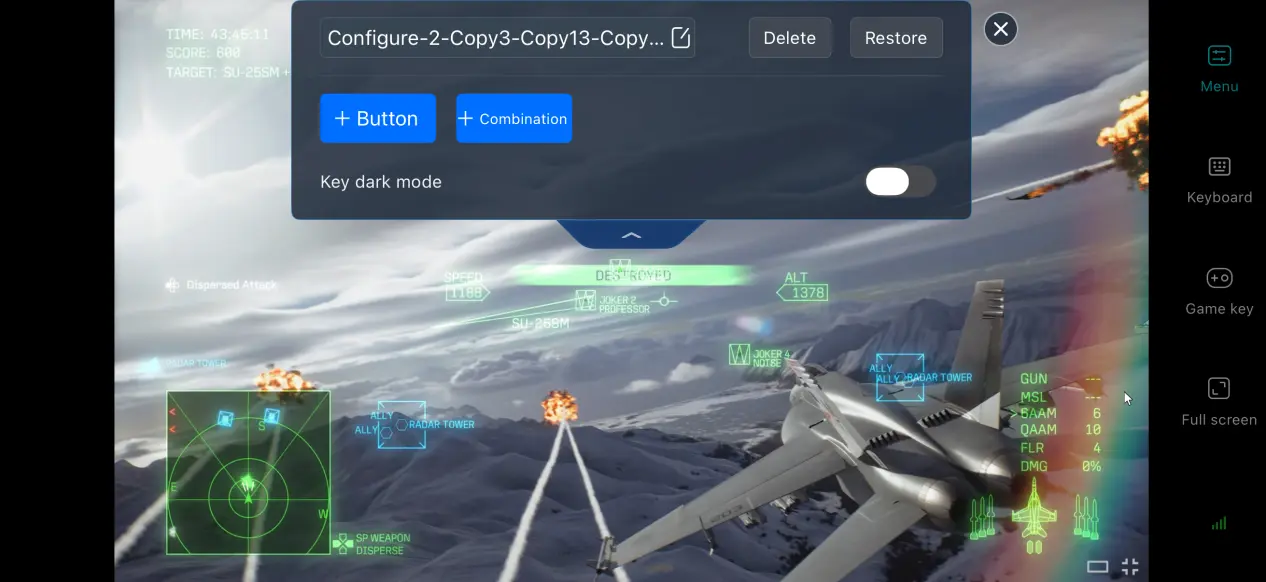
Play Without Being Tied to a Time or Place
As long as your network connection is stable enough, your phone and PC do not need to be on the same local network to use remote streaming. When you're away from home, you can pick up where you left off, continue campaign missions, or adjust your aircraft loadout. Your aerial-combat experience is no longer limited to sitting at your PC.
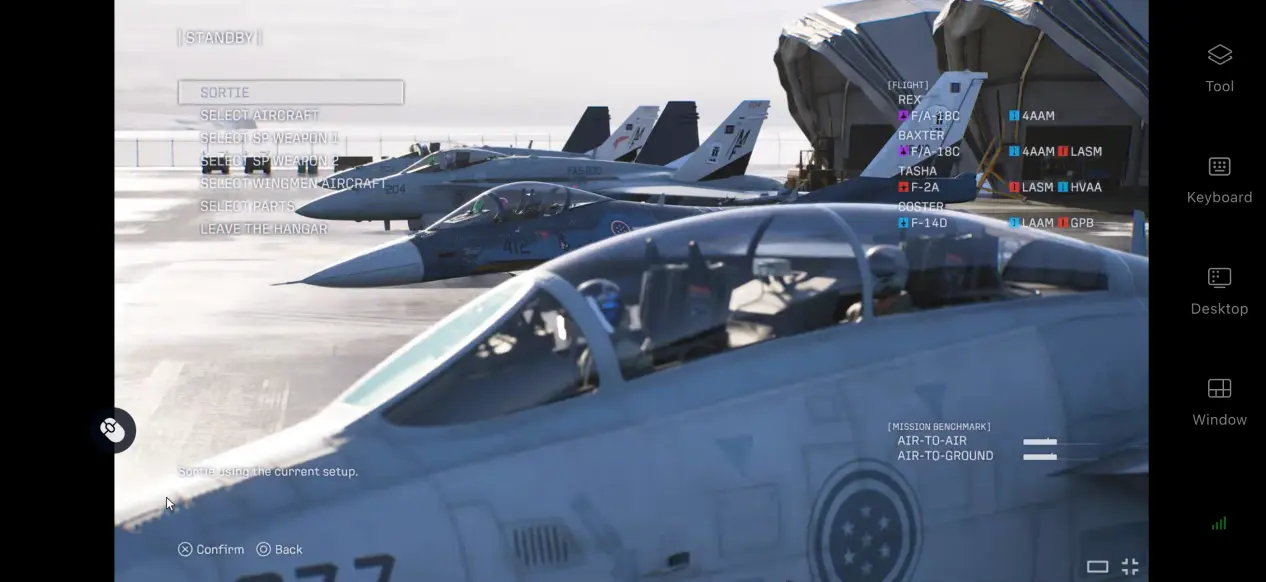
No Need to Use Your Phone's Storage
All game resources remain stored on the PC's hard drive. Your phone only receives the streamed video and sends back control inputs, so there is no need for a huge game download. Even if your phone has limited storage or older hardware, you can still enjoy the full game experience.
5. How to Optimize Your OSLink Gaming Experience
Customizable Controls
For frequently used actions such as controlling aircraft pitch and turns, switching weapons, deploying flares, and changing targets, you can use the custom control mode to add and adjust virtual buttons. You can freely move the buttons around the screen and set up combination buttons to make touch controls more comfortable on a smaller display.
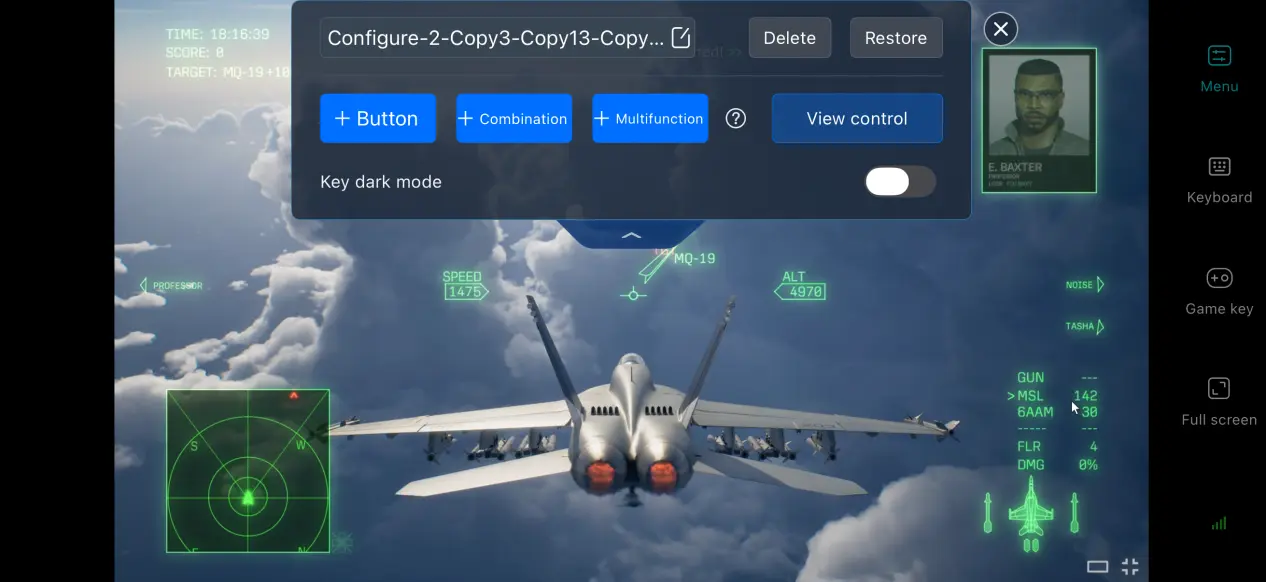
Complete Streaming History
OSLink keeps a connection history for every remote session, including the connection time and information about the accessing device. If an unfamiliar device attempts to connect, you can immediately freeze its access permissions to help keep your streaming sessions secure.
Dedicated PC Game Streaming Mode
After enabling the 60 FPS PC Game Mode in the right-side toolbar, the software reallocates bandwidth resources and prioritizes the transmission of control inputs. During high-speed maneuvers and rapid camera changes in aerial combat, this can help reduce input-response latency. If the network becomes unstable, you can lower the video bitrate slightly to prioritize overall streaming smoothness.
Mobile Screen Adaptation
When you switch to full-screen mode, the software automatically hides the phone's status bar and gesture area. If the game's resolution and your phone's screen aspect ratio differ, the image will scale automatically while preserving the original aspect ratio, reducing the visual distraction caused by black bars.
6. Frequently Asked Questions
Q1: What is ACE COMBAT 8: WINGS OF THEVE release time?
A: ACE COMBAT 8: WINGS OF THEVE release date is October 2, 2026, for PS5, Xbox Series X|S, and Steam. Deluxe Edition users will have access to the game early.
Q2: What are the PC system requirements for ACE COMBAT 8: WINGS OF THEVE?
A: The minimum requirements listed on Steam are Windows 11 64-bit, an i7-10700K / Ryzen 5 3600X processor, 16GB of RAM, an RTX 2060 graphics card, an SSD, and at least 125GB of available storage space. This is intended to provide 1080P gameplay at 30 FPS on Low settings. The recommended configuration is an i7-12700K / Ryzen 5 5600X processor, 32GB of RAM, an RTX 3070 graphics card, an SSD, and at least 125GB of available storage space, targeting 1080P at 60 FPS on Medium settings.
Q3: Can I play ACE COMBAT 8: WINGS OF THEVE directly on Android or iOS?
A: The official release list does not include a native Android or iOS version, so mobile devices cannot directly install the game itself. If you have a Windows PC and have already purchased the game, you can use OSLink for remote streaming. The game will still be rendered and processed on the PC, while your phone acts as the display and control device, allowing you to play through your phone.
Conclusion
ACE COMBAT 8: WINGS OF THEVE is a flight-action title focused on realistic aerial combat, but it does not offer a native mobile client, so the game cannot be directly installed and run on a phone. OSLink provides an accessible remote-streaming solution that frees players from their desktop setup and lets them continue playing in more situations. It is a practical option for players who want to experience the game wherever they go.
 Download